Browser Fingerprinting Explained: What It Is, How It Works, and What You Can Do About It
A technical, honest look at browser fingerprinting — the signals that go into a fingerprint, passive vs active techniques, which browsers and extensions actually resist it, and what the realistic limits of protection are.
By Sofia Reinholt · 8 min · 19 May 2026
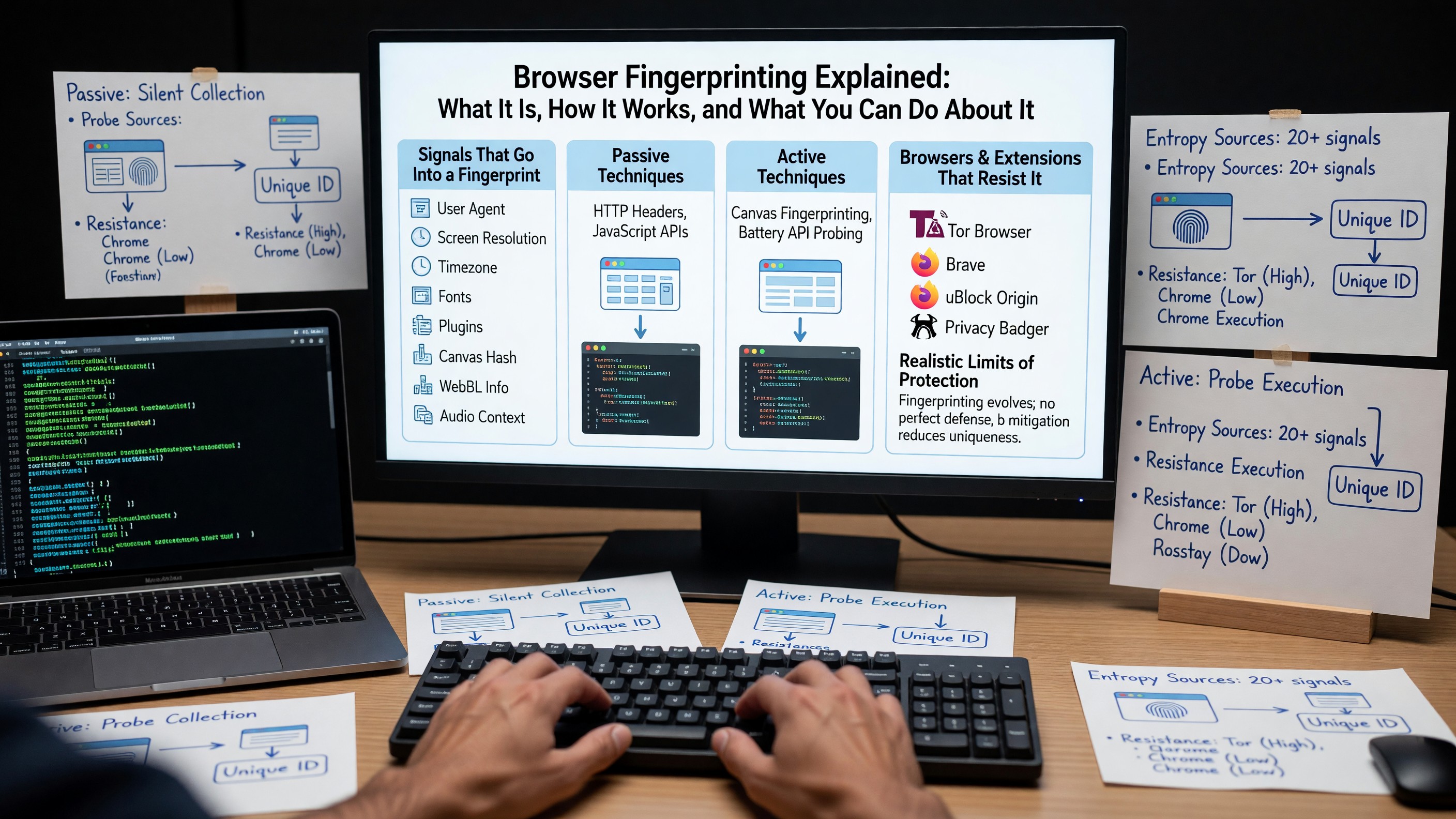
Browser Fingerprinting Explained: What It Is, How It Works, and What You Can Do About It
Cookies are the tracking technology people think about. Fingerprinting is the one that quietly does most of the work. It needs no storage, survives private browsing, ignores cookie banners, and in many cases cannot be cleared by any action the user takes. Understanding how it actually works — and where the limits of protection sit — is the prerequisite to making honest decisions about which tools matter.
This is not a “switch to this browser and you’re invisible” article. The honest version is more useful.
What a Fingerprint Actually Is
A browser fingerprint is a set of attributes that, taken together, distinguish one browser instance from most others. No single attribute is identifying; the combination usually is. The signals fall into a few categories:
- Environment attributes. User agent string, accepted languages, platform, screen resolution, available screen area, color depth, device pixel ratio, timezone offset, and timezone name.
- Hardware-derived signals. Number of logical CPU cores, device memory (where exposed), touch support, pointer types, and audio context characteristics.
- Rendering signals. Canvas rendering output, WebGL renderer and vendor strings, WebGL shader precision, and the output of specific WebGL drawing operations.
- Capability signals. Installed fonts (probed indirectly), supported codecs, supported MIME types, the precise list of features supported by the JavaScript engine, and the behavior of edge cases in floating-point math.
- Behavioral signals. Scroll velocity, typing cadence, mouse movement patterns. These are increasingly used alongside the static signals, particularly by anti-fraud vendors.
Any one of these is shared by millions of users. Combine eight or ten of them and the entropy is usually enough to pick a single browser out of a population of hundreds of millions.
Passive vs Active Fingerprinting
The distinction matters because the defenses differ.
Passive fingerprinting uses signals that the browser sends automatically. The User-Agent header, Accept-Language, Accept, the IP address, and TLS handshake characteristics are all observable without any JavaScript running. A server can fingerprint a passive visitor based on the HTTP request and TLS ClientHello alone. JA3 and JA4 TLS fingerprints, for example, derive from the cipher suite ordering and extension list in the ClientHello and are stable across page loads from the same browser build.
Active fingerprinting runs JavaScript to probe the environment. Canvas fingerprinting draws a test image and hashes the pixel output — the result varies based on GPU, driver, font rendering, and antialiasing settings, producing a stable per-machine value. WebGL fingerprinting reads back the renderer string and the output of specific drawing operations. AudioContext fingerprinting generates a tone and reads the processed waveform; subtle differences in the audio stack produce a stable hash.
Active techniques are more identifying but easier to defend against, because the browser controls the API surface. Passive techniques are harder to defend against because the signals are inherent to the network request itself.
Which Browsers Actually Resist It
The honest ranking, from strongest to weakest:
Tor Browser. The reference implementation. It standardizes the user agent, screen size, timezone, language, and fonts across all users on the same release channel. Canvas readback is permission-gated. The Tor network itself hides the IP address. The cost is the experience: it is deliberately slow, many sites are hostile to it, and the “everyone looks the same” property only holds if you do not change the defaults.
Mullvad Browser. A Tor Browser fork without the Tor network, maintained jointly by the Tor Project and Mullvad (whose VPN we examined in our Mullvad VPN honest review). The fingerprint-resistance work is preserved; the network anonymity is not. Useful when you want fingerprint resistance without onion routing.
Firefox with
privacy.resistFingerprinting = true. This flips Firefox into a mode that borrows most of Tor Browser’s countermeasures: spoofed user agent, restricted timezone (UTC), reduced screen resolution reporting, and canvas readback prompts. It breaks some sites and is not enabled by default for a reason. Our Firefox privacy settings guide covers the practical configuration.Firefox with Enhanced Tracking Protection (Strict). Blocks known fingerprinting scripts using the Disconnect list. Effective against the common commercial fingerprinters; ineffective against custom or first-party fingerprinting.
Brave. Implements “farbling” — randomizing canvas, WebGL, audio, and font outputs slightly per-session per-site. The randomization is the defense: a fingerprint that changes is not useful for tracking. Effective in practice, though the approach is different in philosophy from Tor’s standardization model.
Safari. Implements a number of fingerprint mitigations (presenting a simplified system configuration, blocking some high-entropy APIs by default) but does not market itself as a fingerprint-resistant browser. Better than Chrome out of the box; not in the same category as Tor or Brave.
Chrome and Chromium derivatives. Minimal default protection. The Privacy Sandbox initiative addresses third-party cookies but not fingerprinting in the same way. User-Agent reduction has narrowed one signal; the others remain.
The Limits of Protection
This is the part most “anti-fingerprinting” articles avoid. The realistic limits:
Randomization can be detected. A canvas that returns a different hash every time it is queried is itself a signal — and trackers can flag the inconsistency, treat it as a distinct fingerprint, or simply use other signals.
Standardization only works if everyone in your cohort actually looks the same. Tor Browser’s defense depends on a meaningful population of users with identical fingerprints. If you change your window size, install an extension that injects content, or enable a non-default setting, you leave the cohort and become more identifiable, not less.
Network-layer signals leak. TLS fingerprints, HTTP/2 frame ordering, and IP-derived signals are unaffected by browser anti-fingerprinting. A VPN changes the IP but not the TLS fingerprint. Tor changes both, at significant performance cost.
Behavioral signals are hard to hide. Typing cadence and mouse movement are stable across browsers, devices, and even networks. Anti-fraud systems use these heavily. No browser setting changes them.
Extensions are themselves fingerprintable. An extension that injects a content script, blocks a resource, or modifies the DOM is observable from the page. Even the absence of a blocked tracker is a signal. The privacy-conscious extensions you install to reduce tracking can, in the wrong combination, increase the entropy of your fingerprint.
What “Privacy” Actually Means Here
When people say they want privacy from fingerprinting, they usually mean one of three different things, and the right tool depends on which:
- Unlinkability across sessions. I do not want site A to know that today’s visitor is the same person as last week’s visitor. Cookie clearing, container tabs, and randomization help here. Tor Browser’s “New Identity” is the strongest version.
- Unlinkability across sites. I do not want site A and site B to be able to confirm I am the same person. Third-party cookie blocking helps; fingerprinting resistance helps more; first-party isolation (Firefox containers, Brave’s per-site state partitioning) helps most.
- Anonymity from network observers. I do not want my ISP, employer, or a passive network observer to know what I am browsing. This is a network-layer problem, not a fingerprinting one. Tor, VPNs, and DNS-over-HTTPS address it; browser fingerprint settings do not.
Be specific about which one you want. The tool selection follows from there.
A Practical Posture for Most People
The realistic recommendation for a privacy-conscious developer who is not a journalist working with sources:
- Use Firefox or Brave as a daily browser.
- Enable Enhanced Tracking Protection on Strict (Firefox) or keep Shields up (Brave).
- Use container tabs or per-site profiles to keep work, banking, social, and casual browsing separated.
- Use a reputable VPN when on untrusted networks; do not expect it to defeat fingerprinting.
- Keep Tor Browser installed for the specific cases where you need it, and use it untouched — no extensions, no resizing, no settings changes.
- Accept that perfect unlinkability across the full open web is not on offer at any setting.
FAQ
Does using a VPN protect me from fingerprinting? No. A VPN changes the IP address signal. The browser-level fingerprint — canvas, WebGL, fonts, timezone, screen — is unchanged. A VPN plus an unmodified Tor Browser is meaningfully different from a VPN plus Chrome.
Are private browsing or incognito modes effective? They prevent local persistence (cookies, history) but do not change fingerprinting signals. A fingerprinting tracker that identifies you in a normal window will identify you in a private window, because the signals it reads are the same.
Is canvas fingerprinting really that stable? Yes. Across browser restarts, OS updates, and even some driver updates, canvas output for a given test image remains stable enough to use as an identifier. It changes when the GPU changes or when the font stack changes meaningfully.
Should I install a “spoof everything” extension? Generally no. Inconsistent or impossible attribute combinations make you more identifiable, not less. The major exceptions are extensions that ship as part of a coordinated browser configuration (like those bundled with Tor Browser or LibreWolf), where the rest of the browser is built to match.
If I cannot achieve perfect protection, is any of this worth doing? Yes. The goal is not invisibility; the goal is to raise the cost of tracking enough that it stops being economical for most actors. Strict tracking protection, container isolation, and a privacy-respecting browser meaningfully reduce the population of trackers that can follow you. Perfection is not on offer; meaningful improvement is.