uBlock Origin Advanced Configuration: Dynamic Filtering and Custom Rules
A practical look at ublock origin advanced configuration — what it does, how it works, and where the real-world tradeoffs live for developers and privacy-conscious users.
By Daniel Osei · 7 min · 5 March 2025
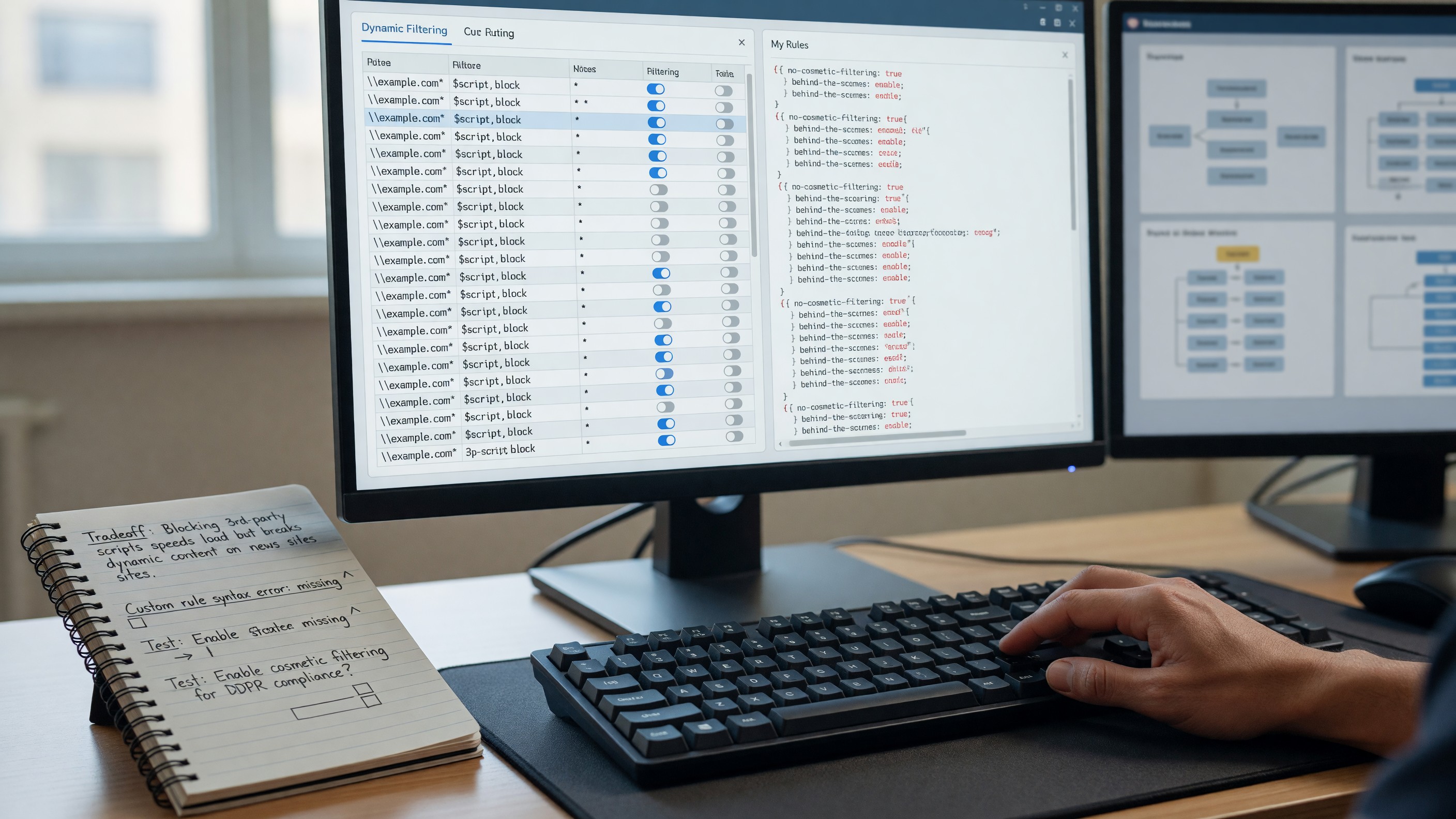
uBlock Origin Advanced Configuration: Dynamic Filtering and Custom Rules
uBlock Origin in its default configuration is a good content blocker. uBlock Origin in medium mode with custom filters and dynamic filtering enabled is a substantially more capable privacy and security tool that blocks significantly more tracking and attack surface than the default. The gap between default and advanced usage is large, and most uBlock Origin users are using a fraction of its capability. This guide covers the settings that make the real difference.
The Dashboard
Click the uBlock Origin icon → the gear icon (Dashboard). Most of what this guide covers is in the Dashboard, not the quick-popup interface.
The gorhill/uBlock wiki is the authoritative documentation. Read it alongside this guide.
Filter Lists: What to Enable
Settings → Filter lists.
Default enabled: uBlock filters (multiple), EasyList, EasyPrivacy, Peter Lowe’s Ad and tracking server list, Online Malicious URL Blocklist. These are the baseline.
Additional lists worth enabling:
- AdGuard Annoyances and uBlock filters – Annoyances: removes cookie consent banners, GDPR overlays, newsletter popup nags, and similar friction. Not privacy-relevant but useful.
- AdGuard Base Filters: supplements EasyList with good coverage for Eastern European and Russian ad networks.
- Fanboy’s Social Blocking List: blocks social media tracking buttons and widgets (Facebook Like, Twitter share buttons) that function as tracking pixels.
Lists you should know exist but approach carefully:
- Paranoid lists (e.g., “Legitimate URL Shortener”): may cause significant site breakage. Enable only if you want to aggressively block redirect tracking.
- The Block Outsider Intrusion Into LAN option in the Settings tab: blocks pages from making requests to your local network (192.168.x.x, 10.x.x.x). This is a meaningful security protection against NAT-slipstreaming-style attacks. Enable it.
Don’t add random filter lists from the internet. More filter lists means more breakage and a longer list to maintain. The default lists plus the specific additions above cover most use cases.
Dynamic Filtering: The Most Powerful Feature
Dynamic filtering (enabled in Settings → I am an advanced user) is the feature that transforms uBlock Origin from an ad blocker into a script-blocking, tracking-prevention tool comparable to NoScript, but with a more granular control interface.
Open the popup, click the “μ” icon in the bottom-right of the popup to enter the expanded view showing dynamic filtering rules.
The matrix shows:
- Rows: resource types and third-party domains
- Columns: global rules and per-site rules
- Colors: green (allowed), gray (neutral/per filter lists), red (blocked)
Medium mode: the configuration that provides substantially better protection than default.
In medium mode:
- Third-party scripts are blocked globally
- Third-party frames are blocked globally
- Third-party domains that set cookies are blocked
To set medium mode:
- In the dynamic filtering matrix, find the “3rd party scripts” row
- Left-click the red square in the global column (leftmost) to set a global block
- Do the same for “3rd party frames”
This breaks many sites. The workflow:
- Visit a site that breaks
- In the popup expanded view, look at which domains are being blocked
- Allow specific third-party scripts from domains you trust for that site only (click to gray = “allow for this site”)
- The rule is per-site; the global block remains for all other sites
Over time, you build a whitelist of sites where specific third-party domains are needed. Most sites either work fine with third-party scripts blocked, or only need one or two specific third-party domains allowed. The medium mode documentation in the uBlock wiki covers this in detail.
Custom Static Filters
Settings → My filters. This is where you write custom blocking and cosmetic filtering rules.
Block a specific URL pattern:
||tracking.example.com^
Blocks all requests to tracking.example.com.
Block a path on a specific domain:
||example.com/api/analytics^
Cosmetic filtering (remove an element from a page):
example.com##.cookie-banner
example.com##[class^="modal"]
The ## syntax targets a CSS selector and removes matching elements. This is how you remove cookie consent overlays, subscription nags, and other visual friction on specific sites.
Exception rules (unblock something):
@@||cdn.example.com/legitimate-widget.js
The @@ prefix creates an exception that allows through even if a list rule would block it.
The filter rule syntax is documented in the uBlock filter syntax reference on the wiki. The syntax is largely compatible with Adblock Plus format but uBlock adds several extensions.
The Element Zapper and Cosmetic Filter Picker
The element zapper (the lightning bolt icon in the popup) lets you click on a page element to temporarily hide it. Useful for testing whether a rule would work before writing it.
The cosmetic filter picker (the eyedropper icon) is more powerful: click an element, and uBlock Origin’s UI lets you pick the CSS selector and create a permanent cosmetic rule. This is the easiest way to write element-hiding rules for specific annoyances on specific sites without knowing CSS selector syntax.
Per-Site Settings: The Popup Quick Controls
The main popup has per-site toggles for:
- Enable/disable uBlock for the current site
- Enable/disable “cosmetic filtering” for the current site (keeps network-level blocking but removes element hiding)
- Large power button: disable uBlock completely for the current site
- “Cloud” icon (if Firefox Sync or uBlock sync is enabled): syncs your per-site settings
Per-site settings persist across visits. When a site breaks, use the per-site controls rather than lowering global settings.
Procedural Cosmetic Filters
Beyond standard CSS selectors, uBlock Origin supports procedural cosmetic filters that can target elements based on text content, attribute matching, and ancestor/descendant relationships:
example.com##.post:has-text(Sponsored)
example.com##.ad-container:not([style*="display:none"])
The procedural cosmetic filters documentation covers the full syntax. These run slightly more slowly than standard CSS selectors and should be used where standard selectors can’t reach the element.
Scriptlets
uBlock Origin (since version 1.26) supports scriptlets — small JavaScript snippets that run in the page context and can neutralize specific anti-tracking and anti-debugging scripts. These are primarily used by filter list maintainers, not end users. But if you need to block a specific JavaScript-based tracking mechanism on a site, the scriptlet injection syntax is worth knowing:
example.com##+js(abort-on-property-read, analytics.initialized)
This injects a script that throws an error if the page tries to read analytics.initialized, preventing the tracker from initializing.
Firefox vs Chrome: Feature Differences
On Firefox, uBlock Origin uses the full webRequestBlocking API, which means network-level dynamic filtering works completely. This is the configuration this guide assumes.
On Chrome with uBlock Origin Lite (the MV3 version), dynamic filtering and webRequest-based blocking are not available. The extension is declarativeNetRequest-only, which means static filter lists but no per-request dynamic decisions. The advanced configuration described in this guide largely applies to Firefox or Chrome with uBlock Origin (legacy MV2, still available through direct installation while Chrome phases it out).
FAQ
Is medium mode worth the breakage? For most developer-adjacent users with a few dozen frequently-visited sites: yes. You’ll add exceptions for those sites once and never think about it again. For users who visit many different sites and can’t manage exceptions: default mode with the additional filter lists is a reasonable compromise.
How do I export my settings and filter rules? Dashboard → Settings → Backup/Restore. This exports your complete configuration including custom filters, dynamic rules, and enabled lists as a JSON file. Back this up periodically.
Will enabling more filter lists make uBlock Origin use more memory? Yes, proportionally. Each filter list adds to the in-memory filter set. The impact is generally small — a few MB for a typical set of filter lists. For very long lists (HOSTS-format lists with hundreds of thousands of entries), memory impact is more noticeable.
uBlock Origin vs AdBlock Plus for advanced users? uBlock Origin consistently uses less memory and CPU than AdBlock Plus, primarily due to its more efficient internal data structures. AdBlock Plus has acceptable-ads exceptions enabled by default (paid by ad networks to be whitelisted); uBlock Origin has no such program. For any serious use case, uBlock Origin is the better choice.